Air is a utility for live reloading for Go apps. I’ve started using it in the creation of this website and I wanted to write about it in case it helps others. These kinds of tools are pretty ubiquitous in the web app world where you constantly want to reload after making changes to your source files. Air was built to accomplish this for Go apps, and it works extremely well for me. In this blog post, I’ll cover installing the tool, using the tool, configuring the tool and some gotchas you might run into along the way.
Installing Air
If you’ve got Go 1.23 or higher, you can use go install github.com/air-verse/air@latest as covered off in the excellent README. If you have an older version, the documentation has the answer for you.
Using Air
Again, everything I’m covering here is mostly covered in the README that I shared in the previous section, but if you want to figure out how I use it instead, read on.
Before “running” air, you should probably go ahead and initialize it. You should do this from the root folder of your Go program, i.e. on the same level as go.mod. When you’re there, just run air init. This creates a a file named .air.toml in the root directory of your project. Read on to learn more about how to configure that file.
Configuring Air
The configuration file for Air, named .air.toml defines some properties about the tool. As the file extension gives away, the format of rhis file is TOML, or Tom’s Obvious, Minimal Language. The big thing to understand about this file is that it’s broken down in clearly named sections. The [build] section holds build configuration, the [color] section holds information about colors shown in the tool, etc. I don’t make a whole lot of changes in this file, but I do think there are a few things that need to be changed and they’re all under the build section
Configure the cmd variable in [build]
The cmd variable under the build section allows us to define how the go program is built. In my case, I have to change that a little bit due to the structure of my program. All of my go files for the web server live under cmd/web/ and as such, that’s the directory I have to use to build the program. That looks something like this:
[build]
  args_bin = []
  bin = "./tmp/main"
  cmd = "go build -o ./tmp/main ./cmd/web"
Configure the exclude_dir variable in [build]
This variable controls the exlusion of directories from causing a reload. By default, everything in the directory is included. You probably don’t need your program to be reloaded for every single change to every single file, so it’s a good idea to exclude some things here.
For me, the defaults here worked fine so I just kept them. So much for custom configuration…
Configure the include_ext variable in [build]
This variable controls what file extensions get included for hot reload. The default values are ["go", "tpl", "tmpl", "html"]. As expected, you probably want changes to these files to cause a reload in the application.
This was a good start for me, but I needed a little bit more, so I updated my file to read ["go", "tpl", "tmpl", "html", "css", "md", "js"]. The css is pretty self-explanatory. I wanted styling of the website to be reflected quickly, given my poor CSS skills, so the CSS addition was a no brainer.
The markdown extension probably comes at a surprise, but that’s just due to the way these blog posts work on the backend. I write these blog posts in Markdown, and a reload is helpful to ensure the styling of the blog post is acceptable.
The Javascript addition is a recent one. I had to update this website to change the layout of a blog post on mobile. By default, all posts are shown in the left sidebar and the links for post headings is on the right. On the mobile version of the website, I add buttons that show these headings. Writing this made me want the app to reload when editing Javascript files, so I added the extension.
Gotchas
Adding this utility to your project comes with a couple of gotchas. None of them are too major, but good to look out for. They’re probably obvious to most folks, but here’s what I encountered.
If you need some run-time configuration for the app, you can add that to the configuration file if you would like. This is a fine thing if those arguments don’t contain secrets. But if you do have secrets in there and you commit that file to Git, you’re going to have a bad time. This blog post was previously backed by a MySQL database that held the blog posts, so I was going to run into this. Luckily, the README has a runtime arguments section. As explained, you can pass runtime arguments by just adding the flag after the air command like so air --port 8080.
In this same vein, you’re going to want to make sure to update your .gitignore file if you don’t want to include the build errors or the compiled program which are stored in tmp/. This is a simple addition, just add /tmp to the gitignore file and keep it moving.
These are two things I ran into, but there may be others. Your mileage may vary, but hopefully this gets you started.
End product
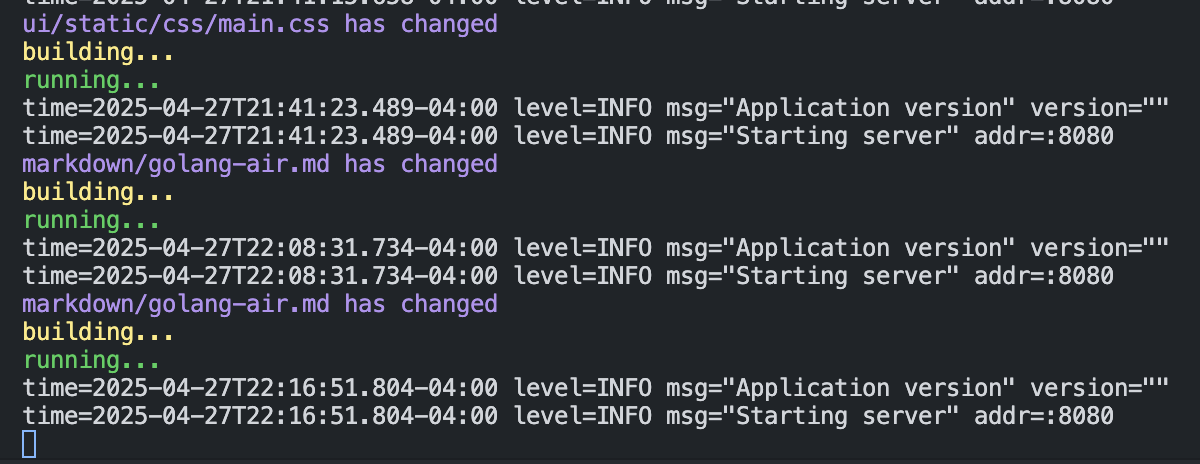
In the end, after making configuration changes like mine above, you’re just one short air command away from building and running your app and having it reload when you make changes.
Here’s a screencap of what that looks like from me working on this blog post earlier tonight. Enjoy!